How to Set Up a Mobile Crypto Wallet

Before you download: picking the right app
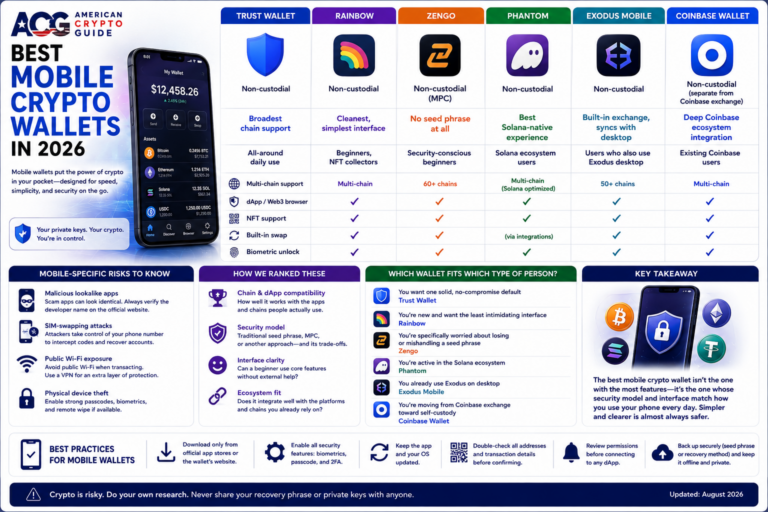
Mobile crypto wallets bring a genuinely different set of setup considerations than a hardware device or a desktop browser extension — the phone itself is both the convenience and the risk. Before downloading anything, decide roughly what you need: broad multi-chain support, a specific single asset, or built-in dApp browsing. This decision narrows your options before you even open an app store, and picking based on your actual needs rather than the first result in a search reduces the chance of switching wallets (and managing multiple seed phrases) later.
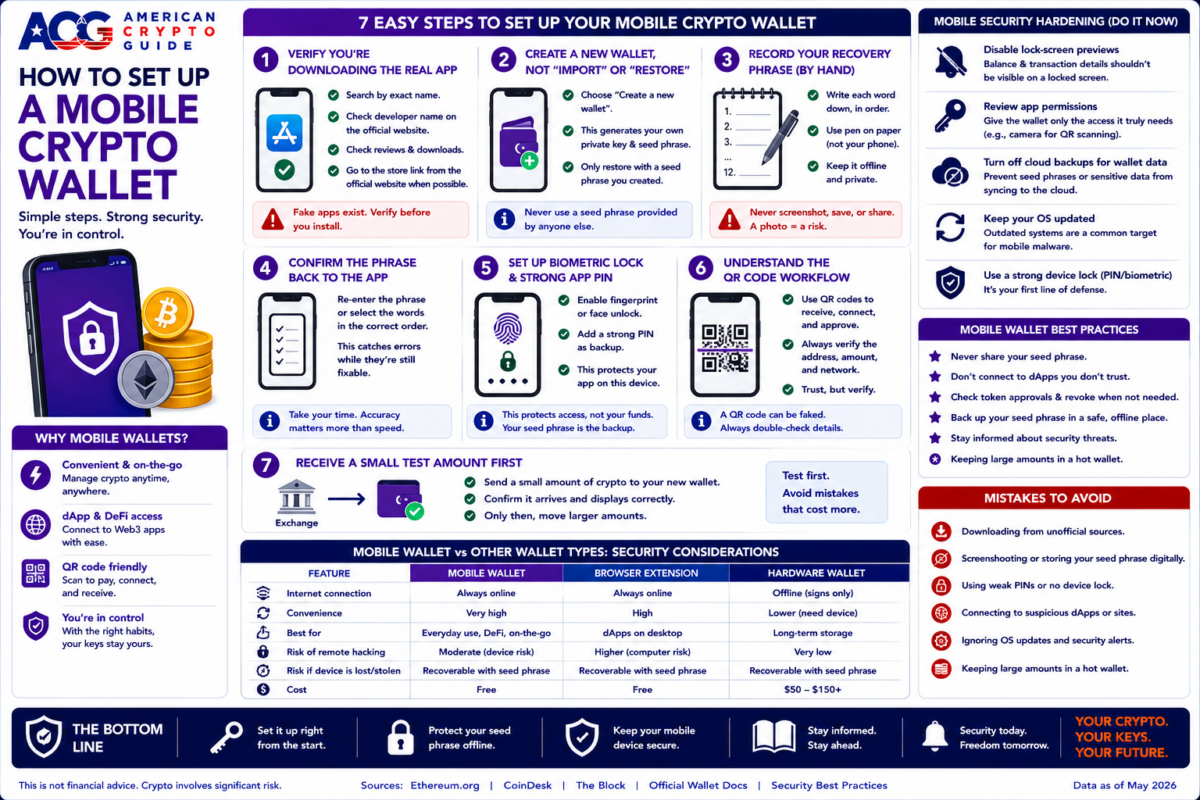
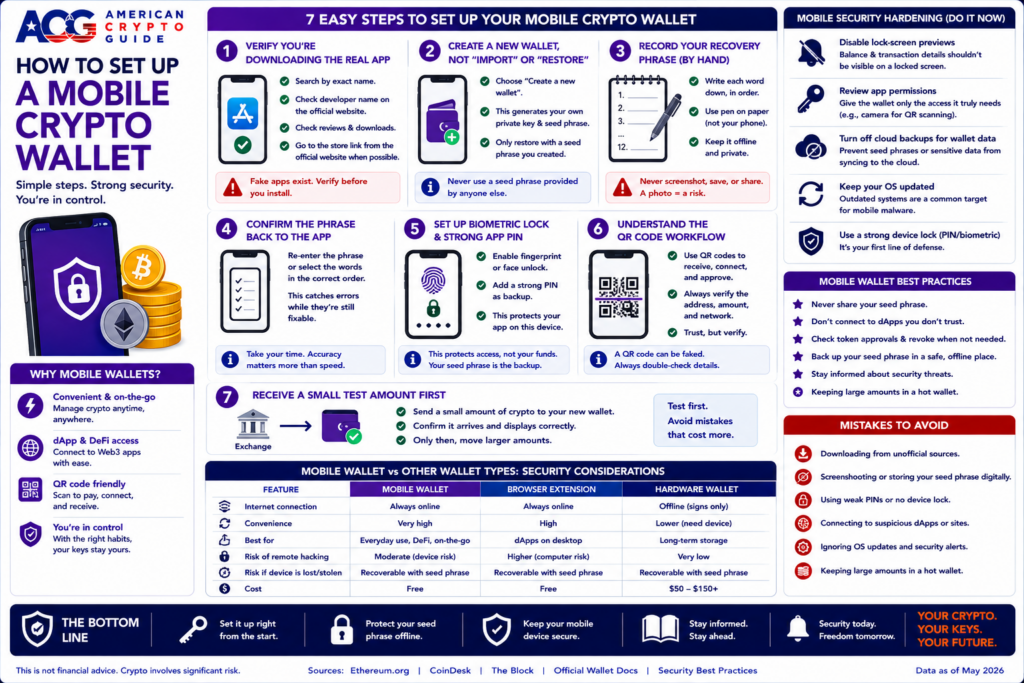
Step 1: Verify you’re downloading the real app
This is the single most important mobile-specific step, and it’s easy to rush past. Fake wallet apps mimicking popular, legitimate ones by name and icon have appeared in official app stores before being reported and removed — a genuine, ongoing risk specific to mobile. Before installing:
- Search for the wallet by exact name and cross-check the developer name shown in the app store listing against the wallet’s official website.
- Check the download count and review history. A wallet claiming millions of users but showing a handful of downloads and reviews is an immediate red flag.
- Navigate to the app store link directly from the wallet’s official website, rather than searching within the app store alone, whenever the option is available.
Step 2: Create a new wallet, not «import» or «restore»
On first launch, choose the option to create a brand-new wallet. This generates your private key and seed phrase fresh, on your device, rather than importing a key that may have been exposed elsewhere. Restoring an existing wallet should only ever involve a seed phrase you personally generated and backed up yourself — never one provided by anyone else, which is a common scam pattern.
Step 3: Recording your recovery phrase — the mobile-specific challenge
This step works the same in principle as any wallet, but mobile introduces one specific temptation worth calling out directly: the instinct to screenshot the seed phrase, since it’s right there on the same device you’d normally use to save information. Resist this entirely. Write the phrase down by hand on paper, in the exact order shown, with the phone’s screen the only place those words should ever appear.
Worth being blunt about: a photo of your seed phrase sitting in your phone’s camera roll is a single data breach, cloud sync misconfiguration, or lost/stolen phone away from someone gaining full access to your wallet. This is true regardless of how careful you otherwise are — the photo itself is the vulnerability.
Step 4: Confirm the phrase back to the app
Most wallets require re-entering the phrase, or selecting words from it in order, before setup completes — a step that exists specifically to catch transcription mistakes while they’re still fixable.
Step 5: Set up biometric lock and a strong app PIN
Enable fingerprint or face recognition unlock if your device supports it, alongside a PIN as a fallback. This protects casual, opportunistic access to the app if your phone is picked up while unlocked or briefly unattended — a meaningfully different risk than the seed phrase protects against, but worth securing separately.
Step 6: Understand the QR code workflow
Mobile wallets typically use your phone’s camera to scan QR codes — for receiving payments, connecting to a desktop dApp session, or importing a WalletConnect session. Get comfortable with this workflow early, since it’s how most day-to-day mobile wallet interactions actually happen. Always confirm the details that populate after a scan (recipient address, amount, network) before approving anything, since a QR code itself can’t be visually verified as legitimate the way a typed address might be double-checked character by character.
📬Did you like this article?
Subscribe and receive our posts directly in your inbox. Free!
Sin spam. Puedes darte de baja cuando quieras.
Step 7: Receive a small test amount first
Before relying on the wallet for anything significant, send a small amount to it from an exchange or another wallet to confirm the setup works correctly — the address is right, the funds arrive, and you understand how the balance displays within the app.
Mobile-specific security hardening worth doing right after setup
- Disable lock-screen notification previews for the wallet app, preventing balance or transaction details from being visible on a locked screen.
- Review app permissions, ensuring the wallet only has access to what it genuinely needs (camera for QR scanning, for instance) rather than broad, unnecessary permissions.
- Turn off automatic cloud backup for the specific folder or app data where sensitive wallet information might otherwise sync, if your phone’s operating system allows granular control over this.
- Keep your phone’s operating system updated, since outdated mobile operating systems are a common target for malware capable of compromising apps running on them.
How mobile wallets compare to other wallet types on security considerations
| Mobile wallet | Browser extension | Hardware wallet | |
|---|---|---|---|
| Physical theft risk | Higher (carried everywhere) | Lower (tied to a specific computer) | Lower (typically stored securely) |
| Malware exposure | Present, mitigated by app store review | Present | Minimal, key stays offline |
| Convenience for daily use | Highest | High | Lower |
| Biometric lock available | Yes, natively | Limited | Device-dependent PIN only |
| SIM-swap relevant risk | Yes, for SMS-based recovery | No | No |
SIM swap protection — a genuinely mobile-specific risk
SIM swapping — an attacker convincing your mobile carrier to transfer your phone number to a device they control — is a risk unique to mobile-centric security setups, since it can intercept SMS-based two-factor authentication or account recovery codes tied to your phone number. While this doesn’t directly compromise a properly set up self-custody mobile wallet (which doesn’t rely on your phone number for its core security), it’s relevant if you use SMS-based recovery or two-factor authentication for related accounts, like the exchange you funded the wallet from. Contacting your mobile carrier to add a PIN or additional verification requirement before any SIM changes closes this gap, and it’s a worthwhile call to make regardless of which wallet you ultimately use.
What to do differently if you’re setting up on a shared or older device
Not everyone sets up a mobile wallet on a brand-new, personally owned phone, and it’s worth addressing that honestly. Setting up a wallet on a shared family device, a hand-me-down phone, or older hardware still running outdated software carries meaningfully higher risk than a personal, current device, since you can’t fully verify what else might be installed or what security patches are missing. If a dedicated device isn’t practical, at minimum ensure the phone is running the latest available operating system update, remove any unfamiliar or unused apps before setup, and treat any amount held on that device as more exposed than it would be on a device you have full confidence in — adjusting how much you’re comfortable keeping there accordingly rather than assuming the same setup steps guarantee the same level of protection regardless of the underlying device’s condition.
For general mobile device security practices beyond wallet-specific setup, the Cybersecurity and Infrastructure Security Agency publishes broadly applicable guidance at https://www.cisa.gov/secure-our-world, useful background alongside the wallet-specific steps covered here.
Adjusting for how you’ll actually use the wallet day to day
Once the initial setup is complete, it’s worth thinking briefly about how the wallet fits into your regular phone use. If you plan to connect it to multiple dApps regularly, get in the habit of periodically reviewing and revoking connections you no longer use, rather than letting a long list of standing permissions accumulate unnoticed. If you mainly use the wallet for occasional transfers rather than active trading, consider whether keeping a smaller, more limited balance on it makes more sense than treating it as your primary holding location — mobile convenience is genuinely valuable, but it’s worth pairing with a deliberate sense of how much exposure that convenience is worth to you personally, rather than defaulting to keeping everything in the most accessible place simply because that’s where you started.
- Screenshotting or photographing the seed phrase, even briefly or «just this once» — this single action undermines the entire offline-generation security model.
- Downloading a wallet app from a link in an unsolicited message or ad rather than searching directly and verifying the developer.
- Skipping biometric lock setup, leaving the app accessible to anyone who picks up an unlocked phone.
- Ignoring app permission requests without reviewing what’s actually being granted.
- Assuming a mobile wallet is inherently less secure than other types and therefore not bothering with careful setup. A correctly configured mobile wallet, used thoughtfully, is a perfectly reasonable choice for appropriate amounts — the setup care matters more than the wallet category itself.
Final thoughts
Setting up a mobile crypto wallet shares the same fundamental security principles as any self-custody wallet — generate your seed phrase fresh, back it up offline, verify before you trust — with a few genuinely mobile-specific considerations layered on top: verifying the real app before downloading, resisting the screenshot temptation, and understanding how phone-specific risks like SIM swapping fit into the broader picture. Get those mobile-specific details right, and a phone becomes a perfectly capable, convenient tool for everyday crypto use.